Learn a Language & Earn Real Cash
Lingoodie is the only language learning app that pays you real money for completing lessons. Learn, earn points, and cash out to Revolut or PayPal every week.
How It Works
Three simple steps to start earning while learning
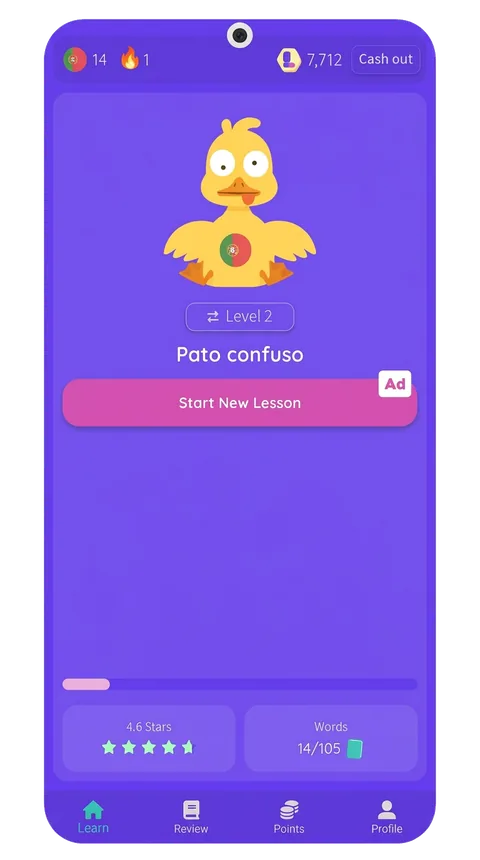
Start a Lesson
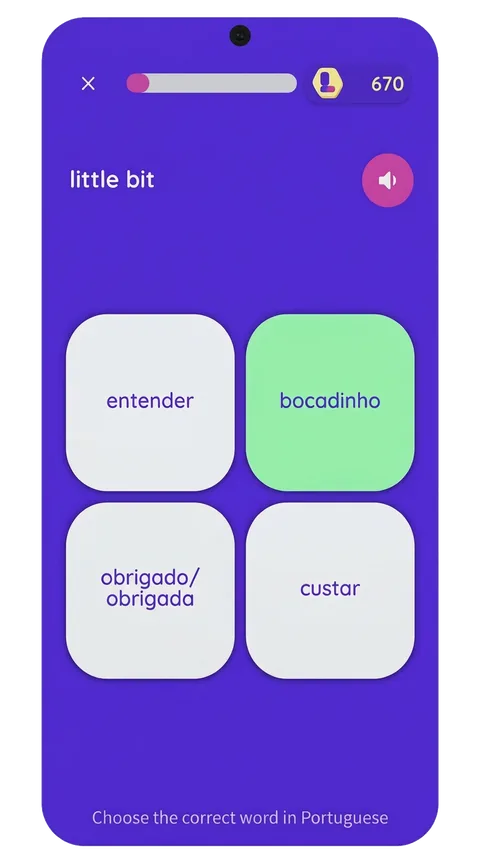
Pick a language and dive into quick vocabulary lessons with fun quizzes. A short ad plays, then you're learning!
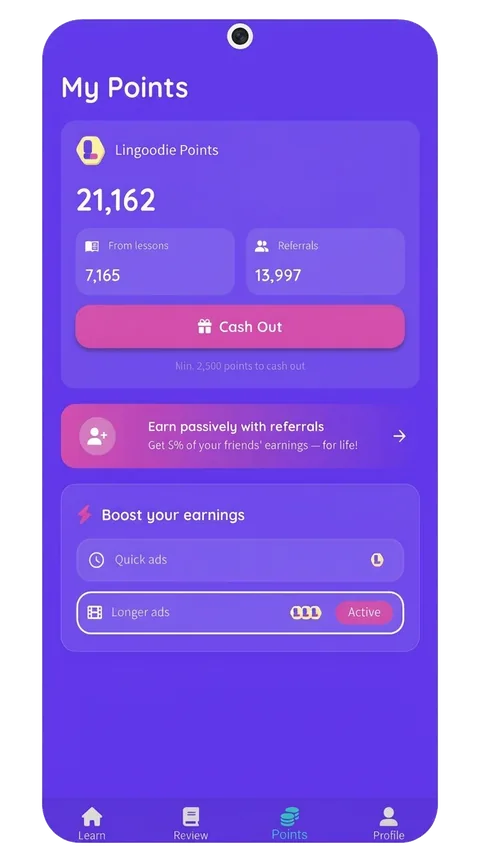
Earn Points
Score points based on your quiz performance. The better you do, the more you earn!
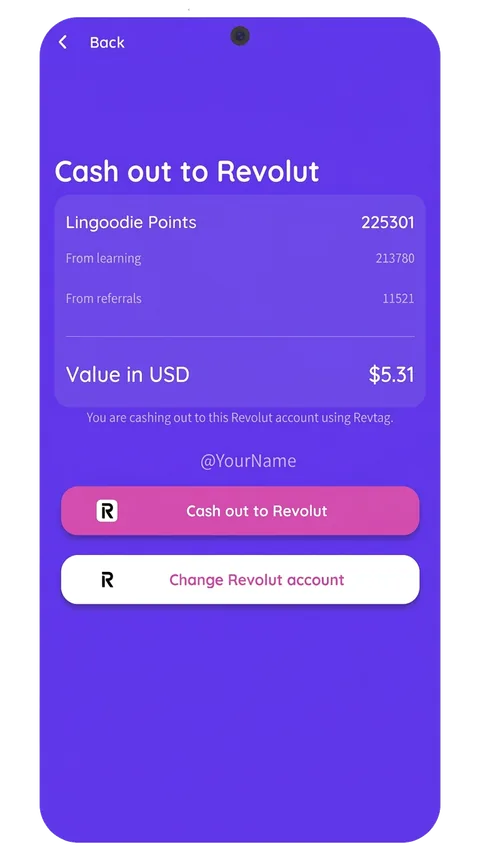
Cash Out
Your points convert to real USD. Withdraw your earnings directly to Revolut or PayPal, real money, real rewards.
Why Lingoodie?
The only language app that pays you real cash for learning.

Real Cash Payouts
Earn real USD and cash out directly to Revolut or PayPal. No gimmicks, no gift cards, actual money.
Completely Free
No subscriptions, no in-app purchases. Lingoodie is 100% free to download and use.
Multiple Languages
Learn Portuguese, French, Spanish, German, Italian, Slovene, Croatian, Korean, Russian and Ukrainian. New languages added monthly!




Redeem Every 7 Days
Cash out your earned points every 7 days. Regular rewards keep you motivated to learn daily.
Referral Program
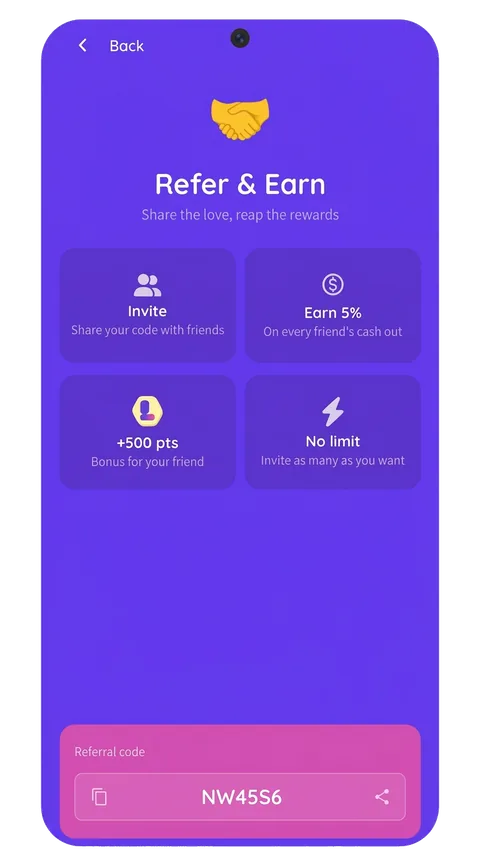
Invite friends and earn 5% of their earnings, for life. The more friends learn, the more you earn.
Fun & Gamified
Enjoy a playful learning experience with our adorable mascot and gamified lessons.
How Do You Earn for Learning?
It's simple: learn, score, and get paid. Here's how your knowledge turns into cash.
Complete Lessons
Finish vocabulary and quiz lessons in your chosen language. Each completed lesson earns you Lingoodie Points.
Get More Right, Earn More
The more correct answers you give, the more points you earn. Accuracy is rewarded!
Points Convert to USD
Your Lingoodie Points are automatically converted into real USD that you can withdraw.
Redeem Every 7 Days
Cash out your earnings every 7 days directly to your Revolut or PayPal account. Real money, no gimmicks.
Invite Friends, Earn Forever
Our referral program lets you earn passive income, for life. When you refer a friend to Lingoodie, you get 5% of their earnings, lifetime. The more friends you invite, the more you earn, even while you sleep.
Share Your Code
Every user gets a unique referral code to share with friends and family.
5% Lifetime Earnings
You earn 5% of everything your referrals earn, forever. No cap, no expiry.
Everyone Wins
Your friends learn a language and earn cash, and you earn passive income. Win-win!
5%
Lifetime Earnings
from every friend you refer
∞
No Expiry
∞
No Cap
💰
Real Cash
Loved by Learners
Real reviews from the App Store and Google Play.
“I have completed 3 levels of German and I made 6 USD! It's nice because I'd be learning German anyway.”
Larycka
“Wonderful experience! Thank you so much for your hard work! It really pays to Revolut which can be used in the USA!”
Victoria W.
“A great incentive. It's not a lot of money but they do pay out. A great motivator to learn another language.”
Pipsta
“Nice languages app!”
Lucinda B.
“Very good app”
Claudiu R.
“It's the best”
Leon R.
“Lahkotno in zabavno učenje!”
Katja S.
“Great. Works as expected. Just wish the pay was a bit more.”
Rebecca R.
“New to this. Looks good.”
Melissa L.
Frequently Asked Questions
Everything you need to know about Lingoodie
Ready to Learn & Earn?
Join thousands of learners who are getting paid to master new languages. Download Lingoodie for free today.
From the blog
Tips, guides, and insights from Lingoodie

Germanic Languages: How Similar Are They, and Where Does German Fit?
English is a Germanic language, and not where most people would guess on the family tree. Here is how the branches fit together, how similar they really are, and why German is the highest-leverage one to learn.
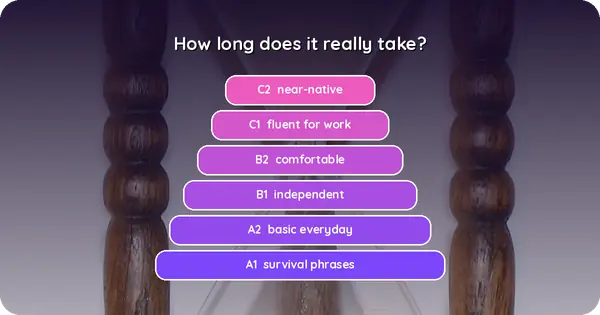
How Long Does It Really Take to Learn a Language?
The real answer is not a number, it is a short piece of math. Pick the level you actually want, look up the hours, divide by the minutes you practice per day, and you have your date. Here is how to run it for yourself.

Romance Languages: How Similar Are They, and Which One Should You Learn?
Around a billion people speak a Romance language, and they all grew out of the same spoken Latin. Here is the family tree, how similar the languages really are, and which one to learn first.